Showing posts with label Ubuntu. Show all posts

Saturday, August 2, 2014


It’s been a while since Canonical has been developing Ubuntu for Devices. Regrettably, it’s not so simple to install it. Yet, if you've want to make an effort for it then dual-booting your Nexus Device.

Lately, Canonical announced an update to its Ubuntu Dual Boot app with the help of which you can dual boot Ubuntu and Android. This means that not only can you check out Ubuntu without experimenting on your phone, but you can see all the new updates as they take place without much mess.
Warning:  As of now Ubuntu for Devices is still under developed condition, and it is almost certainly not a complete package to full in your daily needs. This is the reason why we are about to Dual Boot Ubuntu on Your Android Device. Obviously, you should be expecting some bugs in the OS.

First, apps in Ubuntu uses HTML5, but a number of apps on the platform are in fact just the regular mobile sites. Some apps may ask you to install an Android app when you start them. Do not install them as Ubuntu is not built on Android and Android apps won't work on it. Challenging this and trying to install them or even opening a link to the app can make a mess.

Second, you will need a laptop or PC running Ubuntu because this procedure requires the desktop version of Ubuntu to install the mobile OS on your Android device.  Here are directions for installing Ubuntu together with Windows: How to install Ubuntu using a USB flash drive.

How to Dual Boot Ubuntu on Android:


Enable USB Debugging.


First, you must enable USB debugging on your phone or tablet.
Here's how to do so:

  • Open the Settings and select "About phone."(Or About Tablet)
  • Click "Build number"  7 times to enable developer mode.
  • Go back to the Settings menu.
  • Tap the just this minute available Developer options.
  • Check USB debugging to enable it.
  • Once that's done, connect your tablet/phone to your computer with a micro USB cable.


Installing the Ubuntu Dual Boot App.


Next, download the Ubuntu Dual Boot installer script from here to your home directory. Then follow these instructions:

  • Open a Terminal window by pressing Ctrl+Alt+T all together.
  • Run the following command to make the script executable:     chmod +x dualboot.sh
  • Execute the script by running the following command:     ./dualboot.sh

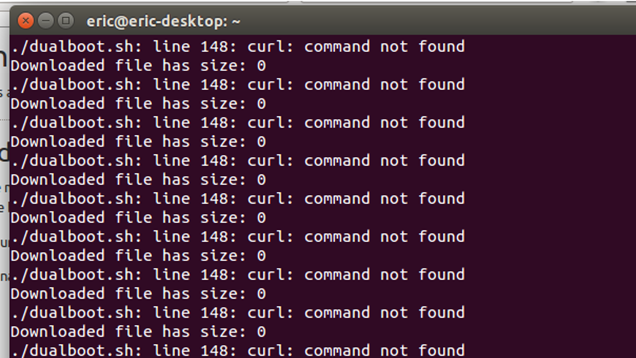
Note: In my experiment with a Nexus 7 on a fresh Ubuntu install, the script got trapped in a loop attempting to execute a curl command (as shown below). If this occurs to you, close the Terminal window, open a new one, and run the this command to install the package: sudo apt-get install curl This will install the essential component. Once that's complete, run the dual boot installation script again.


Downloading and Installing Ubuntu for Devices.


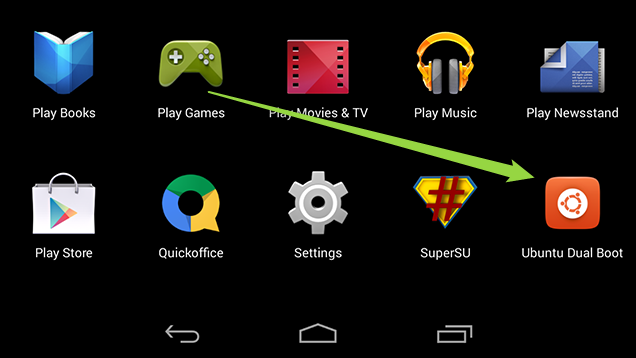
The script will run involuntarily and will reset your device a number of times. Once this is complete, your phone or tablet should boot back up to the Android home screen. Now, open the new Ubuntu Dual Boot app from your app drawer and then:

  • Click "Choose channel to install."
  • Choose a download channel (Canonical recommends "utopic").
  • Click "Grant" when prompt for super user access.
  • Once Ubuntu has completed downloading and installing, click Reboot to Ubuntu.
  • Well Done! You now have Ubuntu running on your phone or tablet.
  • How to Switch Between Android and Ubuntu
Also Read: 15 Google Search Tricks and Tips to Make Web Browsing Easy.

Nothing like many other dual boot solutions, you don't select which operating system you want at begin. As an alternative, once you've booted into Android, start the Ubuntu Dual Boot app and click "Reboot to Ubuntu". Your device will then restart into Ubuntu. Regardless of which OS you're in, a hard reset will always boot to Android. This is generally performed by holding down the power button for about ten seconds. There's also a Dual Boot app in Ubuntu for switching back to Android if you wish.
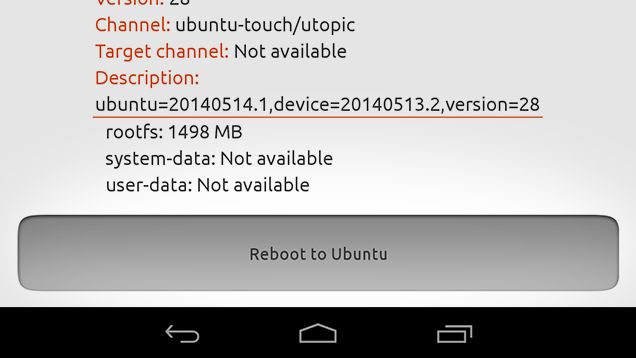


You can also update Ubuntu from either the Ubuntu Dual Boot app in Android or from the system settings in Ubuntu. Nevertheless, both methods require you to be in Android to actually install the update, so it's almost certainly best to just boot into Android first when it's time to update anyhow.
How to Dual Boot Ubuntu on Android.

Friday, August 1, 2014


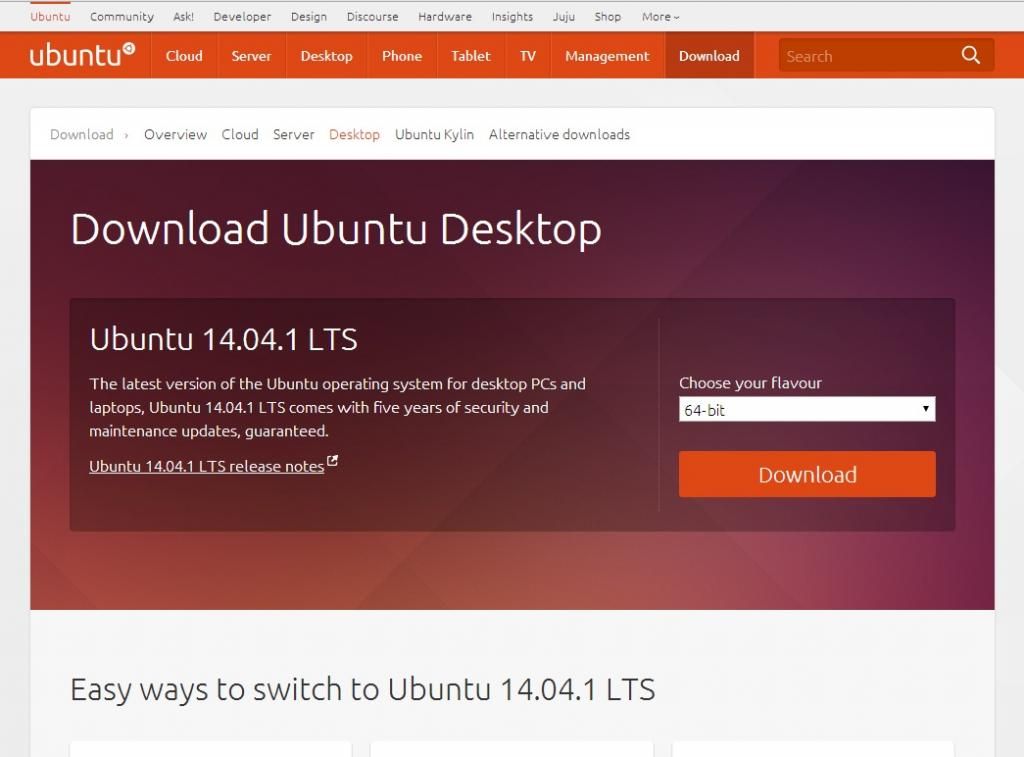
Want to try Ubuntu on your PC or laptop, just download the Desktop Edition from the Ubuntu website. Click the Download link in the menu at the top, then click the Download and install button. Use the drop-down menus to select the version you want.


How to install Ubuntu using a USB flash drive.

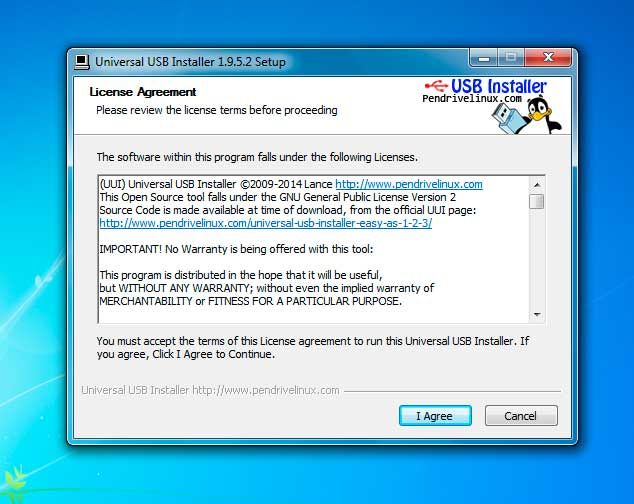
We suggest using a 4GB USB flash drive and downloading the Universal USB Installer utility to install Ubuntu. Run the utility (it runs directly in Windows from the executable file you downloaded) and make sure you select the suitable version of Ubuntu from the listing. After that, direct the utility to the location of the ISO file on your hard disk and, at last, choose the right drive on which to install it.

Ensure that you've backed up the files on the flash drive, as it will wipe out them. Likewise, back up the files on the computer onto which you're installing Ubuntu, even if you are planning to install it as a secondary OS. 


You can insert USB drive into a free port on the computer which will run Ubuntu, after all the files have been written to the USB drive. If the computer doesn't boot from the flash drive, you'll need to modify the order of the boot devices in the BIOS. You can enter the Bios by pressing Del, F1 or another key that's shown on the screen at boot time.


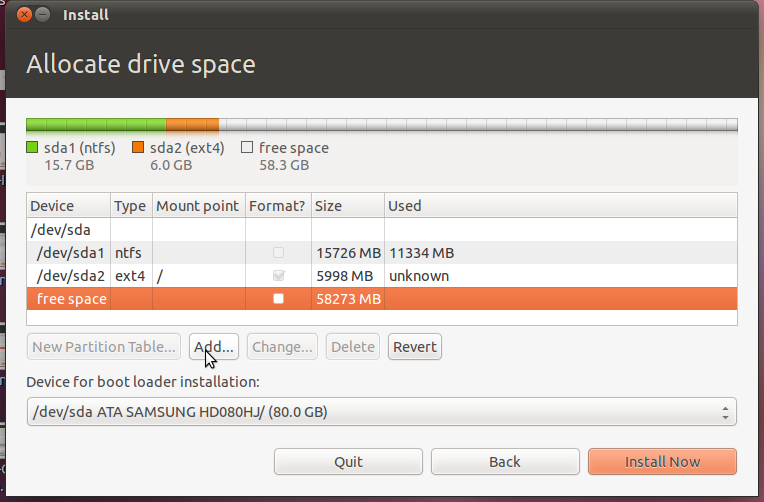
Follow the on-screen directions when Ubuntu loads - it will sense if another operating system is there and provide options about how to install Ubuntu. If you want to throw away Windows and make Ubuntu the only operating system, we advise selecting the 'Something Else' option and deleting the Windows partition on your hard disk. You'll also need a 'swap' area, which should be double the capacity of your computer's memory.

If you're common to partitioning Windows disks, it's a little confusing when doing the same in Linux. As a substitute of referring to drive letters, you'll see disks and drives shown as hda or sdb, etc. Hda refers to the first IDE disk - the second would be hdb. Modern hard disks which connect via SATA or even USB are called sda, sdb, sdc, etc. Each primary partition is numbered 1 to 4 and each logical partition from 5 upwards. Confirm you're certain of which disk and partition you're trading with before performing the changes. Partitioning take place only when you click the install button.

The partitions you require for Ubuntu are: root, home and swap. Root is where Ubuntu is installed, and should be at least 4GB. Select ext4 as the file system and / as the mount point. The home partition is where your files are kept, and should be sufficient enough to have a room for everything you plan to store. For a second time, select ext4 as the type, and /home as the mount point. The swap partition should be twice the capacity of your computer's memory, so if it's 2GB, then create a 4GB swap partition. Choose swap as the type - there's no mount point. 


At the time of installation, you'll be prompt for a few details together with your location, language, username and password. It's suitable to have your computer connected to a network, and you'll be asked to choose a Wi-Fi network if no Ethernet cable is connected. This makes sure the latest updates are installed.


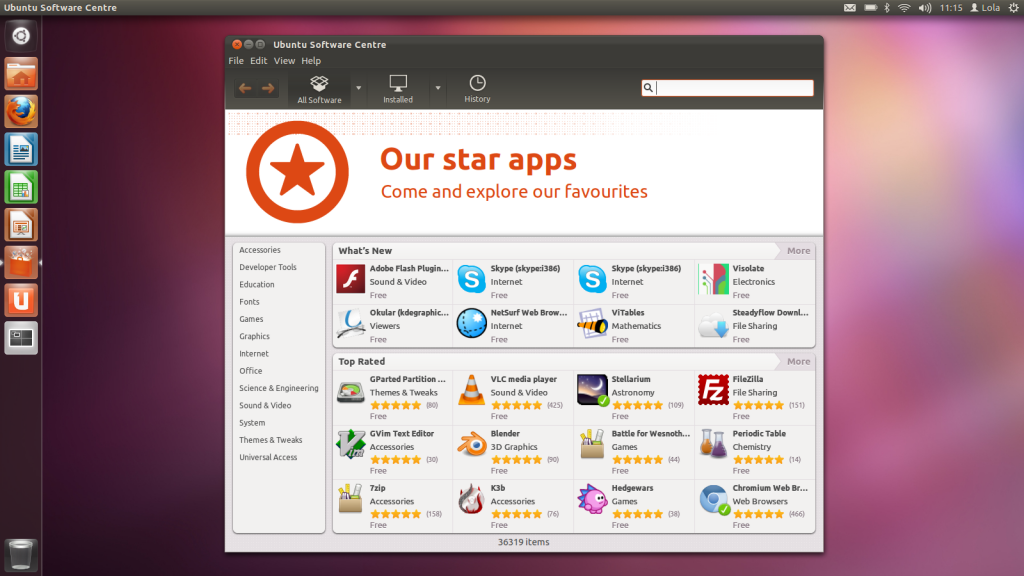
Once installation is done, remove the flash drive and press Enter. Your PC will restart and launch Ubuntu. Go to the Software Centre (the shopping bag icon at the bottom of the dock) and you can install your favourite applications including Chromium (the Ubuntu’s answer to Google Chrome), Skype, Dropbox and others.


How to install Ubuntu using a USB flash drive.

Wednesday, July 30, 2014


When we talk about Operating Systems for mobile phones and tablets, two names comes in our mind right away that are Android and iOS, the most noticeable mobile operating systems presently available.

Android is developed by Google and can be set up on a very wide range of devices from different manufacturers. Thanks to the fact that Google creates the code for much of Android freely available, anyone from an individual to big companies can build on top of the Android platform. iOS, on the other hand is developed by Apple and works only on precise Apple hardware, like the iPhone and iPad.

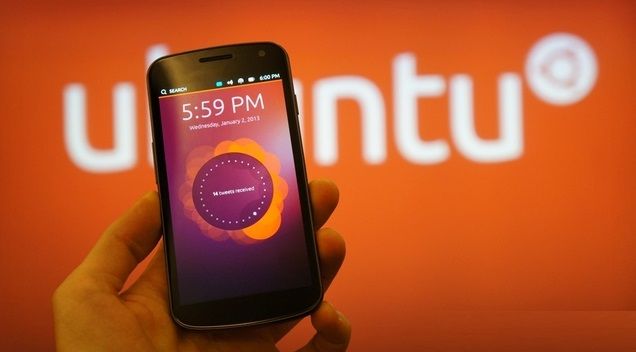
Despite the fact that both of these OS are enormously popular, well designed, easy to use and idolized by their respective fans, they are not the only mobile operating systems in the market. There are a few lesser known mobile OS but here is an Alternative to iOS and Android: Ubuntu for Android that may prove a milestone is Mobile OS.

Alternative to iOS and Android: Ubuntu for Android.


Ubuntu maker Canonical is getting into the smartphone business in a big way. In the desktop computing world, Canonical’s Ubuntu Linux has earned momentous grip as a free substitute to OSX and Windows, and they are now self-confident to break into the phone arcade with Ubuntu for Android.
Ubuntu for Android make the most of Android’s kernel (a core element of the OS) and its drivers, but promises to let loose the true command of multicore devices by gaining access to the hardware more efficiently as compared to Android. Canonical, the commercial body behind Ubuntu, minimize the great difference between your phone and your laptop as much as possible by passing a full collection of desktop applications to the mobile arcade. The really attention and focus of Ubuntu For androidis multitasking. Here's How to Dual Boot Ubuntu on Android.

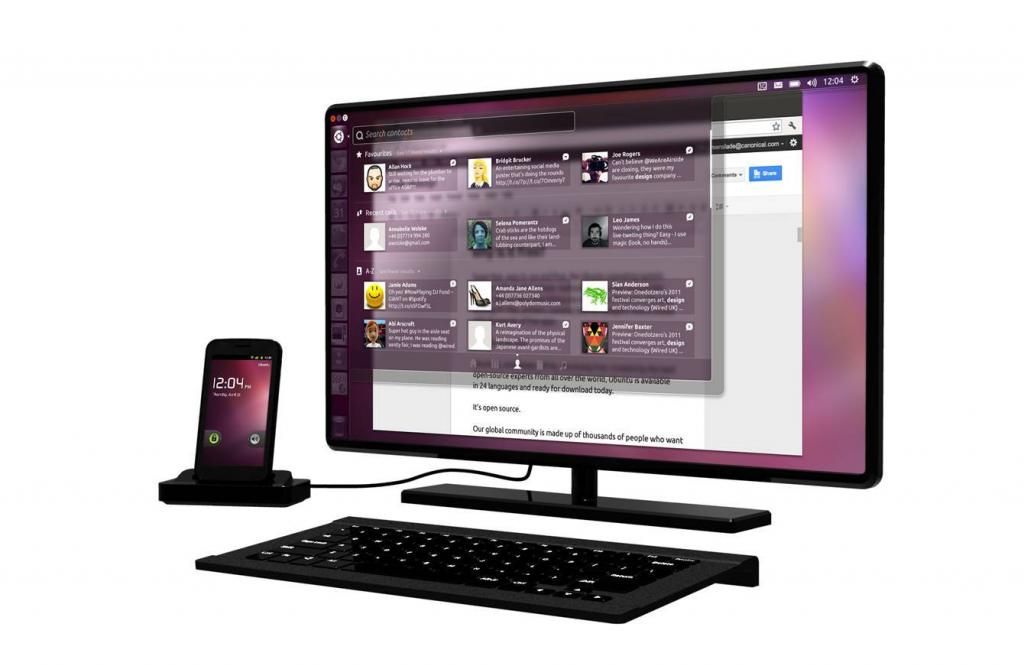
Ubuntu for Android is a solution that lets you dock your Android phone to a monitor, keyboard, and mouse to use your phone as a fully equipped desktop computer. When you’re away from your computer, you can use your phone as a normal Android handset.


At the end of the day, they want their users to plug their phones into docks, which delivers an experience like desktop, permitting continuous transitions between work, play and on the go use of your smartphone.

Also Read: 13 Interesting Facts About Google That You May Don't Know.

I assume that many of the geek users will be motivated to dual-boot their Android phones and use both operating systems. General users will be more liable to drift to a tablet that allows them to take their Ubuntu experiences from one device to the next with a simple swipe of their finger.

Smartphones working on Ubuntu’s mobile OS should be released sometime this year. Have a glimpse of Ubuntu for Android in the video above.


Alternative to iOS and Android: Ubuntu for Android.

Subscribe via Email